
On Kompas, a performer has three levels: the performer, their offers, and the services within their offers. Understanding this from the start will make filling out your account simple.
- The contractor is you: your name or organization's name, logo, business type, address, email, website, and social media. This information is common to all your proposals.
- An offer (called "activity" in the dashboard) is what the buyer sees in the catalog: title, description, photo, subgroups, languages, regions, and reviews. The "Business Card" and "Business Card Plus" platforms have one offer, while the "Pro" platform has up to 15, for example, for branches at different locations.
- Services are individual items within a proposal, with a description, price, and photo. They are available with the "Vizitka Plus" plan.
For example: the contractor is "Ivan Petrenko", the offer is "Computer repair and setup", the services are "Laptop setup, from €40" and "Wi-Fi router installation".
1. Registration
If you don't have an account yet:
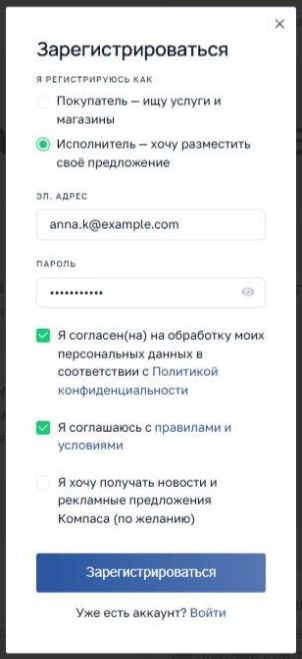
- Click "Login/Register" in the upper right corner and select "Register".
- Check "Artist".
- Enter your email and password. Your email will be your login.
- Please agree to the Site Rules and the processing of your personal data. Subscribing to news is optional.
- Click "Register." After confirming your email address via the link in the email, the site will immediately open the form for your first offer.
If you're already registered as a buyer , click "Become a Contractor" in the website header or in the "Buyer Account." You don't need a new account: a contractor on Kompas can always be a buyer.
One account is one contractor account. Creating multiple accounts for a single business is not necessary and is prohibited by the Rules: branches have the "Pro" plan.
2. First sentence: the form and how to fill it out
The sentence form is short. A title, description, and at least one subgroup are required; the rest is optional, but the more complete the better.
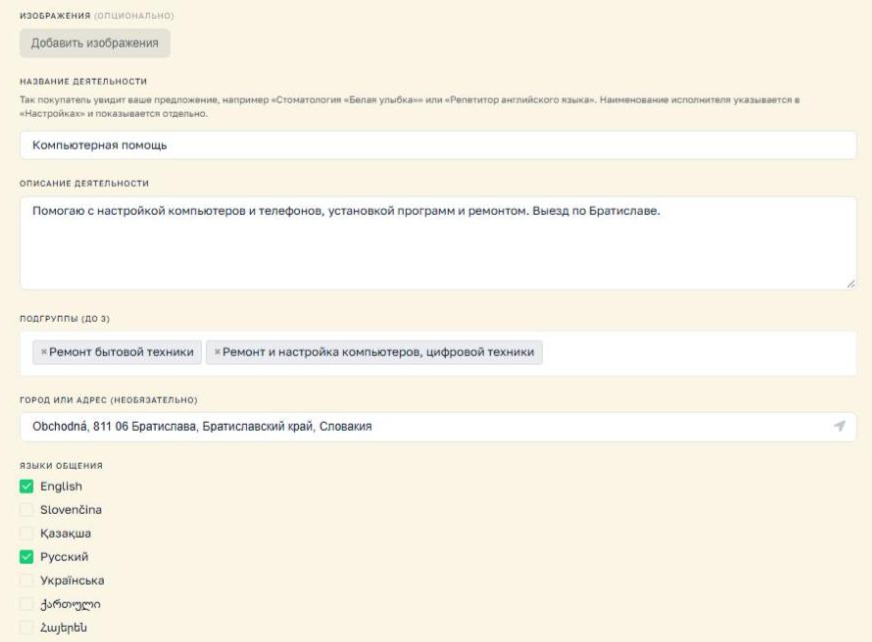
Images. Photos of your work, space, products, or team. Up to 3 photos are allowed on the "Business Card" page; up to 5 on paid plans. The first photo becomes the preview cover. The logo is uploaded separately, in the artist's profile.
Business Name. This is how buyers will see your listing in the catalog. State what you do: "White Smile Dentistry," "English Tutor," "Washing Machine Repair." Your name or business name appears separately next to it—there's no need to repeat it.
Business Description. This is the most important field. Answer the buyer's questions here:
- what exactly do you do and what tasks do people come to you with;
- Who do you work with: individuals, companies, or both?
- where do you receive or where do you travel;
- What makes you different from others: experience, guarantee, deadlines, certificates;
- How to sign up or order.
Write in the language you've selected as your description language: Compass will translate the text for buyers.
Subcategories (up to 3). Select the subcategories in which buyers will search for you. If you repair both appliances and computers, select both.
City or address. Please include at least the city or town—it will determine the region and display a map on the page. Add the street and building number if clients come to you.
Languages spoken. Select all languages you can actually speak with your client. You'll be found in search results for each of them.
Publish your offer and it will appear in the catalog immediately.
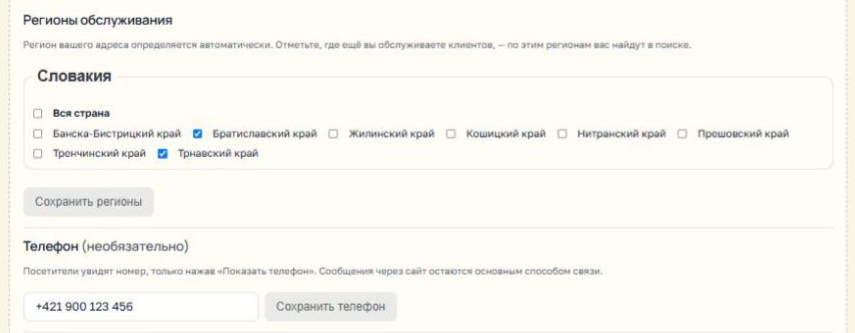
After publication, two more blocks will appear in the proposal editor, which are saved with their own buttons:
- Service regions. Your address region is automatically determined. Select where else you work or "Nationwide"—you'll be found in those regions as well.
- Phone (optional). Buyers will only see this number by clicking "Show Phone."

Describe yourself as you would to the person next to you in line: who you are, what you can do, and where to find you. Without "quality services at affordable prices"—that's what everyone writes.
3. Contractor's details
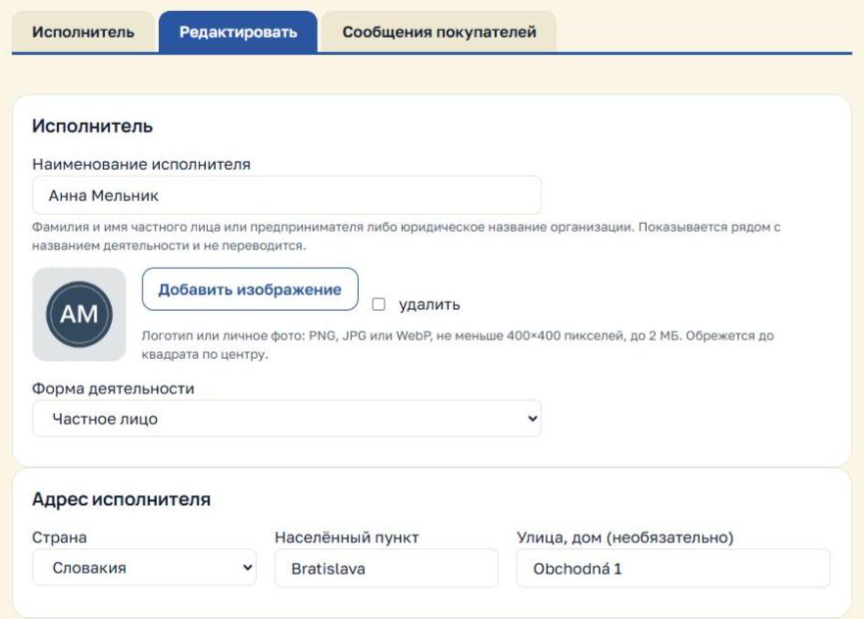
This information is general for all your proposals: you only need to fill it out once. Go to "Personal Account" → "Contractor Account" → "Edit" tab.
- Contractor's Name —the last and first name of an individual or entrepreneur, or the name of an organization. This is displayed next to the proposal title and is not translated. Required.
- Logo or personal photo — PNG, JPG, or WebP, no smaller than 400x400 pixels, up to 2 MB. The image will be cropped to a centered square. Without a logo, the preview will show the first letter of the name.
- Business type —organization, individual, or professional. Buyers filter the list by this.
- The performer's address - country, town and, optionally, street and house number.
- The contractor's email is the address where buyers' messages and Kompas emails are sent. It may be different from the login email. Buyers won't see it. The new email address takes effect after confirmation via the link in the email.
- Description language is the language you write your texts in. It determines which languages Kompas translates your sentences into.
- Website and social media — website, Facebook, Instagram, Telegram, YouTube, LinkedIn. These will appear as colored icons in the card.
Click "Update".
Your first name, last name, login email, and password can be changed elsewhere: "Personal Account" → "User Settings." You must confirm the login email change from both your old and new addresses to protect your account from unauthorized access.

A logo is a face. Without it, you're just a letter in a circle. And I, by the way, am recognizable even with my pen torn off.
4. Services, files, videos and several offers
These blocks are located in the proposal editor: "Personal Account" → "List of My Proposals" → proposal name → "Edit." Each block is saved with its own button.
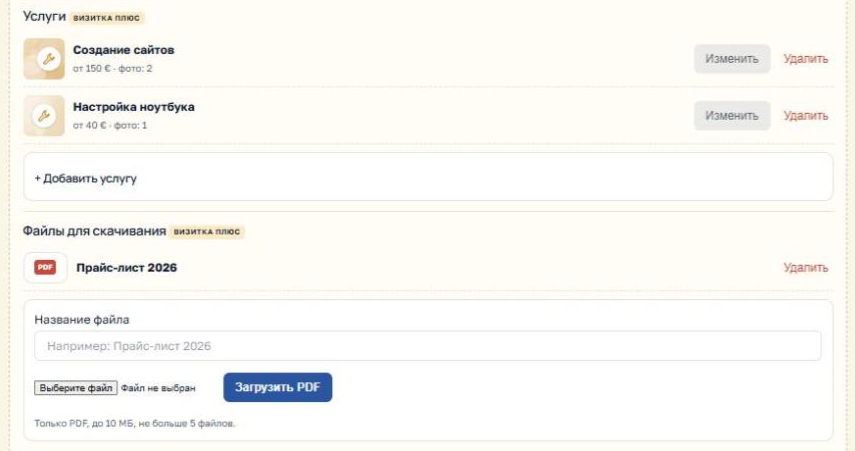
Services (starting with the "Business Card Plus" plan). Add individual items: title, short description, optional price (e.g., "from €50"), and up to 5 photos. The buyer will see the list of services on the offer page.
Downloadable files (with the "Business Card Plus" plan). Price list, catalog, menu, and terms of service—PDF only, up to 10 MB, no more than 5 files.
Videos (Pro plan). YouTube links or your own video files, up to 5 in total. They are displayed along with photos.
Multiple offers (Prof plan). If you have multiple branches or different activities, you can create up to 15 offers on the Prof plan: "List of my offers" → "+ Add activity." Each offer has its own address, subgroups, regions, photos, services, and reviews. The performer's details are shared.
If your plan is downgraded , services, files, videos, and extra offers are not deleted but hidden and stored for 12 months. Revert your plan, and everything will reappear on the website. For more information, see the "Plan Guide."

Services with prices are like an inventory of contents on a tag. The buyer can immediately see what's inside and how much it costs.
5. Customer messages, Telegram, and reviews
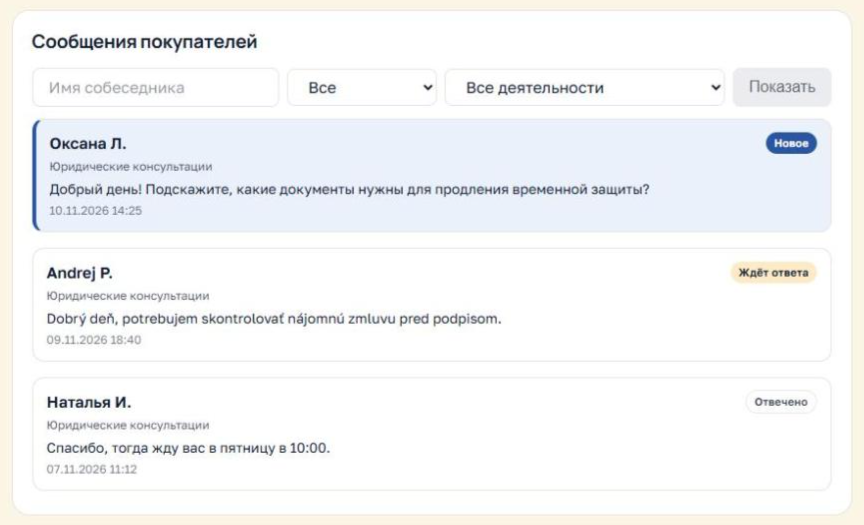
Messages. When a buyer contacts you, an email with a link is sent to the contractor's email address. All conversations are collected in the "Contractor Account" → "Buyer Messages" tab. Each line represents one buyer, with the following status:
- “New” - there are unread messages;
- “Waiting for a response” was the last message the buyer wrote;
- "Answered" was the last one you answered.
You can filter the list by contact name, status, and offer. Tap a line to open the conversation and reply; the "Return to message list" button will take you back.
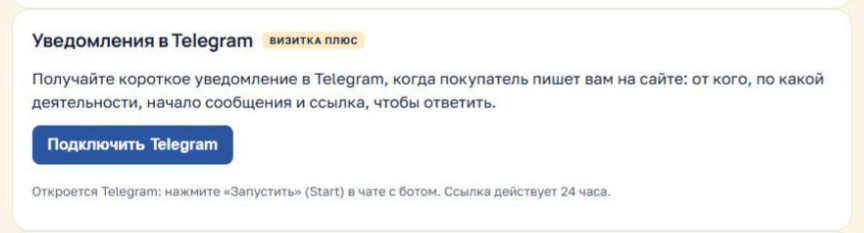
Telegram notifications (with the "Business Card Plus" plan). In the "Contractor Account," click "Connect Telegram" and in the chat with the bot that opens, click "Start." You can connect from a computer or phone—the main thing is that your Telegram account is open on that device: the app, the Telegram app, or Telegram Web in a browser. If Telegram is only available on your phone, copy the link and open it there—it's valid for 24 hours. Notifications will be sent to all devices where your Telegram account is open. Now, every message from the buyer will be sent to Telegram. To reply, click "Reply" on the notification and type your message—the reply will appear in the conversation on the website, and the buyer will receive an email. You can disable notifications by clicking the button in your account or by using the /stop command.
CRM integration (Pro plan, subject to contract). Customer messages can be directly sent to your customer tracking system as leads, and responses from the CRM can be returned to the customer on the website. This setting is available in the "Price Guide."
Reviews. Reviews for each offer are visible on its page and in the offer editor, under the "Reviews" tab. To get more reviews, ask satisfied customers to leave them on Compass. Self-rating is prohibited.
Answer quickly. While you're thinking, the buyer is already writing to the next one. I know—I look for porters that way myself.
6. Changes, pause, deletion and technical support
You can edit a sentence at any time: "My Sentences List" → Title → "Edit." Changes appear immediately, and the translation will update automatically.
Hide from display — if you're on vacation or temporarily not accepting orders. The offer will disappear from the catalog, but will remain, along with any reviews. You can restore it using the same button.
Delete - the offer is permanently deleted, along with all reviews about it.
Technical Support. If you have a question or problem, click "Contact Technical Support" under the dashboard menu or in the website footer. A response will be sent to your dashboard, and your request history will be saved.
A good card checklist
- The name and logo are filled in
- The title of the sentence tells you what you do
- The description answers the questions: what, for whom, where, how are you better, how to order
- All languages you speak are marked.
- Suitable subgroups and service regions have been selected
- Photos uploaded
- The website and social networks are indicated, if any.
- Notifications in Telegram have been enabled (on "Business Card Plus")
- You respond to customers within a day.
- You ask satisfied customers to leave a review
Checked all the boxes? Then pack your bags: clients are coming. I mean, they're writing.
На Компасе у исполнителя три уровня: исполнитель, его предложения и услуги внутри предложений. Если понять это сразу, заполнять кабинет будет просто.
- Исполнитель — это вы: имя или название организации, логотип, форма деятельности, адрес, email, сайт и соцсети. Эти данные общие для всех ваших предложений.
- Предложение (в кабинете — «деятельность») — то, что видит покупатель в каталоге: название, описание, фото, подгруппы, языки, регионы, отзывы. На «Визитке» и «Визитке плюс» предложение одно, на «Проф» — до 15, например для филиалов по разным адресам.
- Услуги — отдельные позиции внутри предложения, с описанием, ценой и фото. Они доступны с тарифа «Визитка плюс».
Например: исполнитель — «Иван Петренко», предложение — «Ремонт и настройка компьютеров», услуги — «Настройка ноутбука, от 40 €» и «Установка Wi-Fi роутера».
1. Регистрация
Если у вас ещё нет аккаунта:
- Нажмите «Войти / Зарегистрироваться» в правом верхнем углу и выберите «Зарегистрироваться».
- Отметьте «Исполнитель».
- Введите email и пароль. Email будет логином для входа.
- Подтвердите согласие с Правилами сайта и на обработку персональных данных. Подписка на новости — по желанию.
- Нажмите «Зарегистрироваться». После подтверждения адреса email по ссылке в письме сайт сразу откроет форму вашего первого предложения.
Если вы уже зарегистрированы как покупатель, нажмите «Стать исполнителем» в шапке сайта или в «Кабинете покупателя». Новый аккаунт не нужен: исполнитель на Компасе всегда может быть и покупателем.
Один аккаунт — одна учётная запись исполнителя. Несколько аккаунтов для одного бизнеса создавать не нужно и запрещено Правилами: для филиалов есть тариф «Проф».
2. Первое предложение: форма и как её заполнить
Форма предложения короткая. Обязательны название, описание и хотя бы одна подгруппа, остальное — по желанию, но чем полнее, тем лучше.
Изображения. Фото работ, помещения, товаров или команды. На «Визитке» — до 3, на платных тарифах — до 5. Первое фото становится обложкой превью. Логотип загружается отдельно, в данных исполнителя.
Название деятельности. Так покупатель увидит ваше предложение в каталоге. Пишите, что вы делаете: «Стоматология «Белая улыбка»», «Репетитор английского языка», «Ремонт стиральных машин». Ваше имя или название организации показывается рядом отдельно — его повторять не нужно.
Описание деятельности. Самое важное поле. Ответьте в нём на вопросы покупателя:
- что именно вы делаете и с какими задачами к вам приходят;
- с кем работаете: с частными лицами, с компаниями или с теми и другими;
- где принимаете или куда выезжаете;
- что отличает вас от других: опыт, гарантия, сроки, сертификаты;
- как записаться или заказать.
Пишите на языке, который выбран у вас как язык описания: Компас переведёт текст для покупателей.
Подгруппы (до 3). Выберите подгруппы, в которых покупатели будут искать вас. Если вы чините и бытовую технику, и компьютеры, отметьте обе.
Город или адрес. Укажите хотя бы населённый пункт — по нему определится регион, а на странице появится карта. Улицу и дом добавляйте, если клиенты приходят к вам.
Языки общения. Отметьте все языки, на которых вы действительно можете говорить с клиентом. По каждому из них вас найдут в поиске.
Опубликуйте предложение — оно появится в каталоге сразу.
После публикации в редакторе предложения появятся ещё два блока, которые сохраняются своими кнопками:
- Регионы обслуживания. Регион вашего адреса определяется сам. Отметьте, где ещё вы работаете, или «Вся страна» — по этим регионам вас тоже найдут.
- Телефон (необязательно). Покупатели увидят номер, только нажав «Показать телефон».
Опиши себя так, как рассказал бы соседу в очереди: кто ты, что умеешь и где тебя найти. Без «качественных услуг по доступным ценам» — это пишут все.
3. Данные исполнителя
Эти данные общие для всех ваших предложений: заполните их один раз. Откройте «Личный кабинет» → «Кабинет исполнителя» → вкладка «Редактировать».
- Наименование исполнителя — фамилия и имя частного лица или предпринимателя либо название организации. Показывается рядом с названием предложения и не переводится. Обязательно.
- Логотип или личное фото — PNG, JPG или WebP, не меньше 400×400 пикселей, до 2 МБ. Изображение обрежется до квадрата по центру. Без логотипа в превью будет первая буква наименования.
- Форма деятельности — организация, частное лицо или специалист организации. По ней покупатели фильтруют список.
- Адрес исполнителя — страна, населённый пункт и, по желанию, улица и дом.
- Email исполнителя — адрес, на который приходят сообщения покупателей и письма Компаса. Он может отличаться от email для входа. Покупатели его не видят. Новый адрес вступает в силу после подтверждения по ссылке в письме.
- Язык описания — язык, на котором вы пишете тексты. От него зависит, на какие языки Компас переводит ваши предложения.
- Сайт и соцсети — сайт, Facebook, Instagram, Telegram, YouTube, LinkedIn. В карточке они появятся цветными значками.
Нажмите «Обновить».
Имя, фамилия, email для входа и пароль меняются в другом месте — «Личный кабинет» → «Настройки пользователя». Смену email для входа нужно подтвердить и со старого, и с нового адреса: так ваш аккаунт защищён от чужих.
Логотип — это лицо. Без него ты просто буква в кружочке. А я, между прочим, даже с оторванной ручкой узнаваем.
4. Услуги, файлы, видео и несколько предложений
Эти блоки находятся в редакторе предложения: «Личный кабинет» → «Список моих предложений» → название предложения → «Редактировать». Каждый блок сохраняется своей кнопкой.
Услуги (с тарифа «Визитка плюс»). Добавьте отдельные позиции: название, короткое описание, цена по желанию — например «от 50 €» — и до 5 фото. Покупатель увидит список услуг на странице предложения.
Файлы для скачивания (с тарифа «Визитка плюс»). Прайс-лист, каталог, меню, условия работы — только PDF, до 10 МБ, не больше 5 файлов.
Видео (тариф «Проф»). Ссылки на YouTube или собственные видеофайлы, всего до 5. Они показываются вместе с фотографиями.
Несколько предложений (тариф «Проф»). Если у вас несколько филиалов или разные направления, на «Проф» можно создать до 15 предложений: «Список моих предложений» → «+ Добавить деятельность». У каждого — свой адрес, подгруппы, регионы, фото, услуги и отзывы. Данные исполнителя — общие.
Если тариф понижается, услуги, файлы, видео и лишние предложения не удаляются, а скрываются и хранятся 12 месяцев. Вернёте тариф — всё снова появится на сайте. Подробнее — в «Гиде по тарифам».
Услуги с ценами — как опись содержимого на бирке. Покупателю сразу видно, что внутри и почём.
5. Сообщения покупателей, Telegram и отзывы
Сообщения. Когда покупатель пишет вам, на email исполнителя приходит письмо со ссылкой. Все переписки собраны в «Кабинете исполнителя» → вкладка «Сообщения покупателей». Одна строка — один покупатель, со статусом:
- «Новое» — есть непрочитанные сообщения;
- «Ждёт ответа» — последним писал покупатель;
- «Отвечено» — последним ответили вы.
Список можно отфильтровать по имени собеседника, статусу и предложению. Нажмите на строку, чтобы открыть переписку и ответить; кнопка «Вернуться к списку сообщений» вернёт вас обратно.
Уведомления в Telegram (с тарифа «Визитка плюс»). В «Кабинете исполнителя» нажмите «Подключить Telegram» и в открывшемся чате с ботом нажмите «Запустить». Подключить можно с компьютера или с телефона — главное, чтобы на этом устройстве был открыт ваш Telegram: программа, приложение или Telegram Web в браузере. Если Telegram есть только на телефоне, скопируйте ссылку и откройте её там — она действует 24 часа. Уведомления будут приходить на все устройства, где открыт ваш Telegram. Теперь каждое сообщение покупателя будет приходить в Telegram. Чтобы ответить, нажмите «Ответить» на уведомлении и напишите текст — ответ появится в переписке на сайте, а покупатель получит письмо. Отключить уведомления можно кнопкой в кабинете или командой /stop.
Интеграция с CRM (тариф «Проф», по договору). Сообщения покупателей могут сразу поступать в вашу систему учёта клиентов как лиды, а ответы из CRM — возвращаться покупателю на сайт. Настройка — в «Гиде по тарифам».
Отзывы. Отзывы о каждом предложении видны на его странице и в редакторе предложения, вкладка «Отзывы». Чтобы отзывов было больше, просите довольных клиентов оставить их на Компасе. Оценивать самого себя нельзя.
Отвечай быстро. Пока ты думаешь, покупатель уже пишет следующему. Я знаю — сам так ищу носильщиков.
6. Изменения, пауза, удаление и техподдержка
Изменить предложение можно в любой момент: «Список моих предложений» → название → «Редактировать». Изменения появляются сразу, перевод обновится автоматически.
Скрыть из показа — если вы в отпуске или временно не принимаете заказы. Предложение пропадёт из каталога, но сохранится вместе с отзывами. Вернуть его можно той же кнопкой.
Удалить — предложение удаляется насовсем, вместе с отзывами о нём.
Техподдержка. Вопрос или проблема — нажмите «Написать в техподдержку» под меню кабинета или в подвале сайта. Ответ придёт в кабинет, история обращений сохраняется.
Чек-лист хорошей карточки
- Наименование и логотип заполнены
- Название предложения говорит, что вы делаете
- Описание отвечает на вопросы: что, для кого, где, чем вы лучше, как заказать
- Отмечены все языки, на которых вы общаетесь
- Выбраны подходящие подгруппы и регионы обслуживания
- Загружены фото
- Указаны сайт и соцсети, если они есть
- Подключены уведомления в Telegram (на «Визитке плюс»)
- Вы отвечаете покупателям в течение дня
- Вы просите довольных клиентов оставить отзыв
Отметил все галочки? Тогда собирай чемоданы: клиенты едут. В смысле — пишут.